10/27/2026
First bot and setup guide
How to Build Your First Discord Bot on Bottly and Host It for Free
Setting up a custom Discord bot used to require programming knowledge, renting a VPS, and dealing with terminal commands. With Bottly, you can build custom slash commands, embeds, and automations visually in your browser and run your bot directly on Bottly's hosting at no cost.
In this guide, we will walk step by step through creating your account, connecting your bot token from Discord, picking starter commands, and taking your first steps inside the Flow Builder.
---
1. Create Your Free Account
To get started, head over to the Bottly Registration Page and create your account. You can sign up with your email or connect directly via Google or Discord.
Once your account is created, Bottly immediately launches the first-bot onboarding wizard to help you set up your bot in under two minutes:
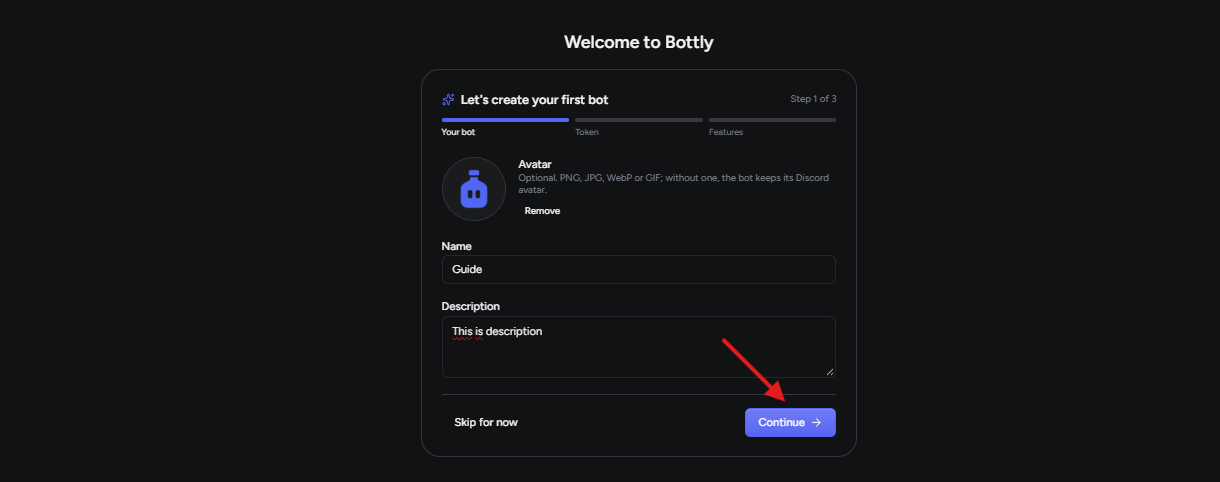
Click the Continue button to proceed to the bot configuration step.
---
2. Connect Your Discord Bot Token
The next screen guides you through connecting your Discord application:
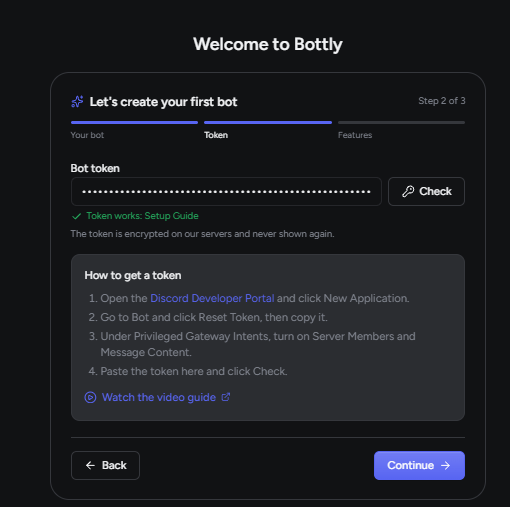
To get your bot token:
Open the Discord Developer Portal in a new tab.
Click New Application and give your bot a name.
In the left sidebar, navigate to the Bot tab and click Reset Token (or Copy).
Paste the token into Bottly's input field and click Check token.
Bottly validates the token directly against Discord's API to make sure the credentials are correct before saving. Your token is encrypted with server-side AES-GCM encryption, ensuring it remains strictly private and protected.
---
3. Choose Starter Features and Commands
After verifying your token, Bottly asks which starter templates you want to generate:
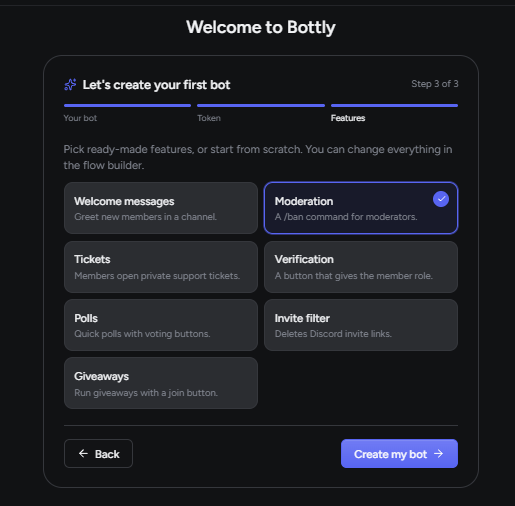
You can pick common starter actions—such as a
/ban moderation command, a welcome greeting, or a basic /ping check. Selecting a starter template automatically generates the visual node graph for that command, so you do not have to start from an empty screen.Select the features you want and confirm to generate your workspace.
---
4. Inside the Flow Builder
Once generation finishes, you are redirected straight into the Flow Builder.
An interactive guided tour automatically highlights the main sections of the workspace:
Left Sidebar: Switch between Slash Commands, Event Automations, Bot Settings, and Hosting Controls.
Node Library: Drag new blocks onto the canvas—triggers, conditional checks, database operations, and Discord actions.
Canvas: Connect triggers to response blocks using visual connection lines.
Live Discord Preview & Properties: Clicking any block opens its configuration panel, showing an exact preview of how your embeds and buttons will look inside Discord.
Follow the quick on-screen tour to see how nodes connect and how parameters work.
---
5. Running Your Bot for Free
Once you are satisfied with your commands:
Hit Deploy & Register in the top-right corner to push your slash commands to Discord.
Open the Hosting tab in your bot overview and click Start Bot.
Bottly spins up an isolated runtime container on our hosting infrastructure. Your bot will connect to Discord gateway within seconds, show an online status indicator, and start responding to commands in your servers right away.